Downloading & Setting Your Lock Screen Images
Learn how to download, unzip, and set your iPhone lock screen wallpapers for the best fit. This walks you through the best iPhone lock screen wallpaper setup to avoid common issues like zoomed or cropped images and show you the best way to set your lock screen correctly.
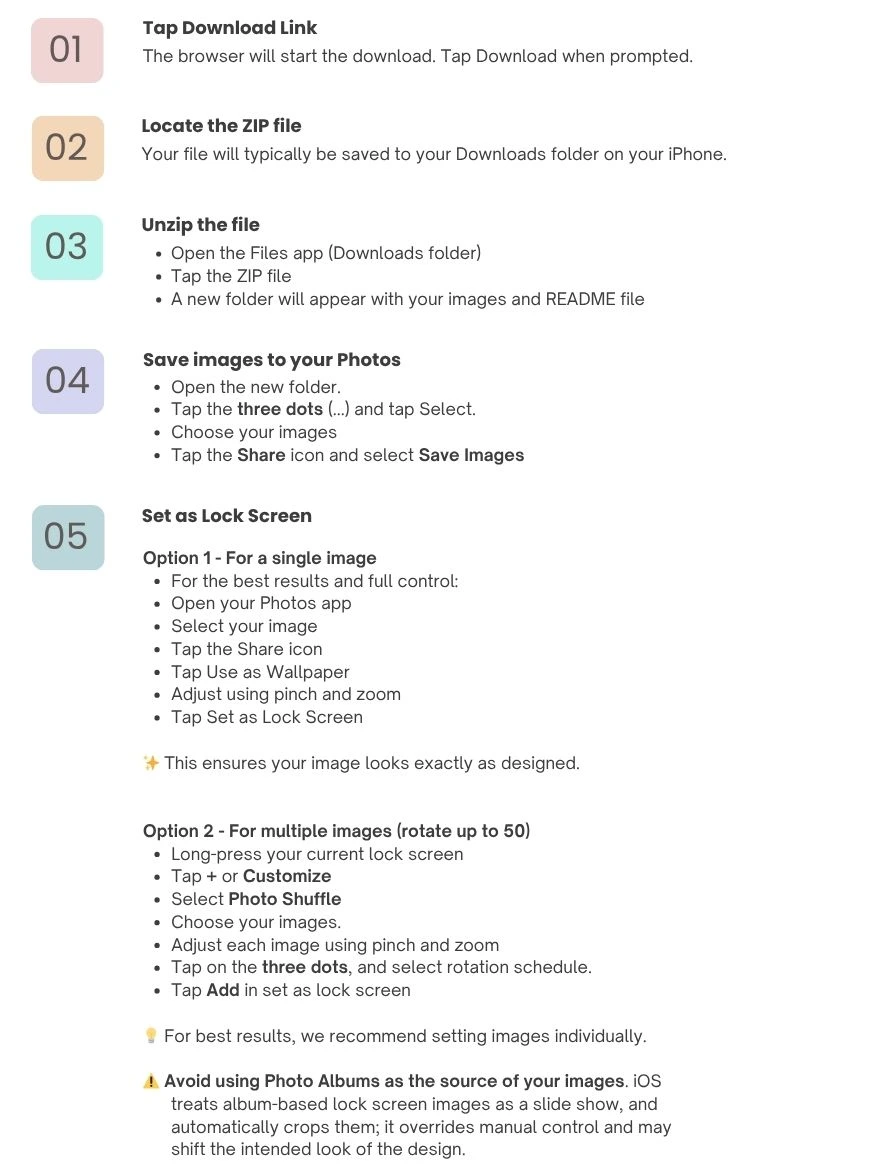
Quick Set Up Summary
To get the best results with your iPhone lock screen wallpaper, follow these steps:
Download and unzip your files using the Files app on iPhone
Save your images to your Photos library
Set each image manually using Use as Wallpaper
Adjust positioning with pinch and zoom for the perfect fit
💡 For the best experience, avoid using Photo Shuffle or albums, as iOS may automatically zoom or crop your lock screen wallpaper.
Why does my lock screen look zoomed in?
What to Avoid
When you set up a photo album as the image source for your lock screen, iOS takes over and automatically resizes and crops your images — and you can't adjust or zoom them manually. This means carefully composed images may end up cropped in ways you didn't intend.
- Pinch & zoom is disabled. iOS treats album-based lock screens as an automated slide show, so manual adjustment is disabled for each individual photo
- Automatic Cropping. iOS automatically crops and zoom images on its own. You cannot override it.
- Our carefully designed composition gets lost. iOS zooms and shifts the image in ways that may ruin the intended look.
Pro Tips for the Best Look
- Use images as provided (avoid cropping before setting)
- Make sure Depth Effect is off if it interferes with text
- Try slight repositioning to align with your clock and widgets
- Your clock widget may shift or grow when you add an image. You can manually shrink it back down by grabbing the right corner.
- Choose images that match your vibe for the day ✨
Lock Screen Setup FAQ
Why does my iPhone lock screen wallpaper look zoomed in?
This usually happens when using Photo Shuffle or albums.
iOS automatically crops and zooms images in these modes, and manual adjustments are limited or disabled.
For the best results, set your wallpaper manually using Use as Wallpaper, which allows full control over positioning.
Why can’t I move or resize my lock screen image?
If you can’t pinch or reposition your image, it’s likely the image is being set through use of a photo album.
In this mode, iOS treats images as part of a slideshow and automatically formats them.
To adjust your image, set it individually through the Photos app using Use as Wallpaper. If you would like to use a Photo Shuffle, select the photos manually, rather than selecting a photo album that contains them. This will allow you to edit the image size and position by pinching it.
How do I set an iPhone lock screen wallpaper correctly?
For the best fit:
Open your image in the Photos app
Tap the Share icon
Select Use as Wallpaper
Adjust using pinch and zoom
Tap Set as Lock Screen
This ensures your image appears exactly as designed.
How do I download and unzip my lock screen images on iPhone?
After downloading your files:
Open the Files app
Go to your Downloads folder
Tap the ZIP file to extract it
Open the new folder
Save your images to your Photos app
Can I use Photo Shuffle with these lock screens?
Yes, but results may vary.
Photo Shuffle may:
Automatically zoom or crop images
Prevent manual positioning
Change how the design appears
For the best experience, we recommend selecting images individually rather than using a Photo Album.
Why does my wallpaper look different from the preview?
This is typically due to iOS automatically adjusting images when using certain settings like Photo Shuffle.
Manually setting your wallpaper allows you to control how the image fits your screen.
Need Help?
If you run into any issues or have questions, feel free to reach out.
We want your lock screen to feel just right. 💛
💛 Explore More Lock Screens
Browse our latest collections and find your next favorite lock screen.